Some recent updates to 3DVisionGym (January 2026)
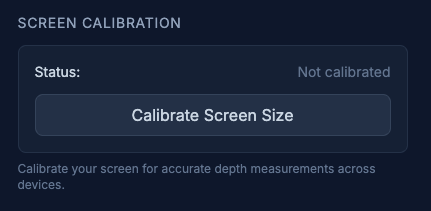
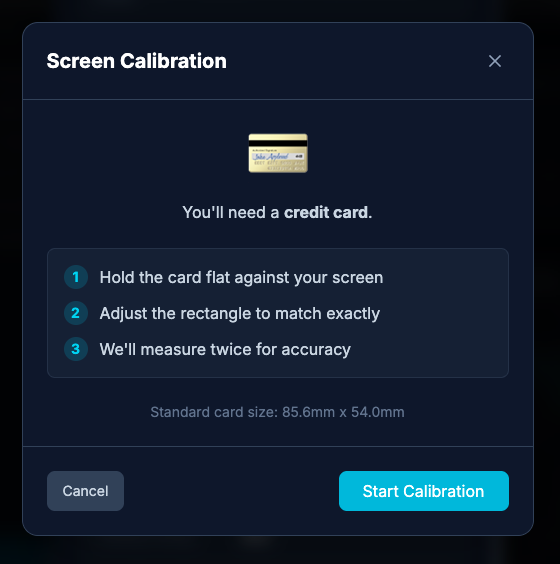
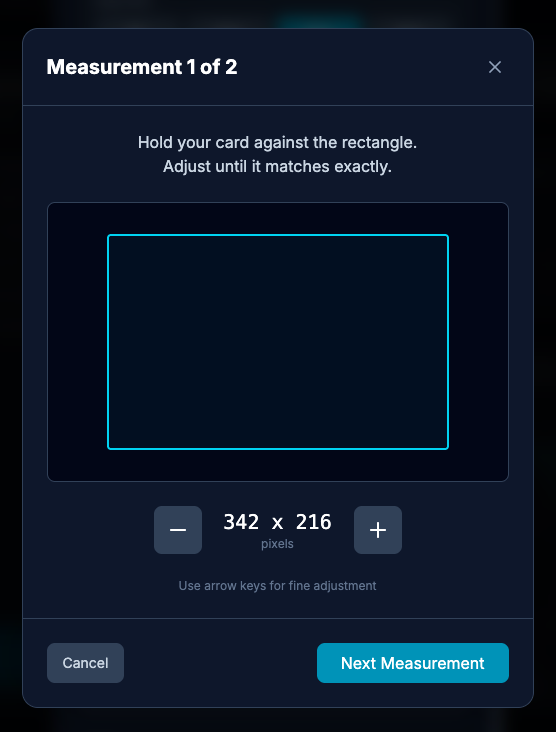
Screen Calibration - We added a way to calibrate the app to your specific screen. This matters more than you might think.
- What it does: Once you go through the calibration the app learns the actual physical size of your screen, not just its pixel count. A 27" monitor and a 13" laptop can both be 1920 pixels wide, but objects appear twice as large on the bigger screen.
- How to use it: Go to Settings → Screen Calibration. You'll hold a standard credit card up to the screen and drag a rectangle to match it. Takes about 30 seconds. New users will be asked to do this during the intro tutorial slides.
- Why it matters: Once calibrated, your Performance Check results include real-world measurements. Instead of just seeing "Level 952," you'll see "Level 952 (~155mm)" - the actual stereo separation your eyes achieved. This also means your tier ratings reflect your true physical performance, not just how many pixels you cleared on your particular screen.
If you've wondered why your levels seemed different when switching between devices, this is why. Calibrate each screen you use and the app will account for the difference.
Performance Tiers - We overhauled how the app categorizes your assessment results.
- What changed: The old four-zone system (Developing/Progressing/Proficient/Advanced) is now a five-tier system with thresholds better connected to real world performance - as long as you've calibrated your screen.
- The tiers:
- Tier 1 (Foundation) - Building fundamentals
- Tier 2 (Developing) - Lower normal rangeTier 3 (Proficient) - Solid normal range
- Tier 4 (Advanced) - Above typical, athletic territory
- Tier 5 (Elite) - Top of our difficulty scale
- Why we changed it: The old thresholds were somewhat arbitrary relative to your screen size (as they were pixel based). The new ones take into account the actual distance for 3D exercises and are a better grounding in abilities.
Faster Peripheral Assessment - The peripheral awareness test in Performance Check was taking too long. We trimmed it.
- What changed: Reduced from 10 trials per difficulty level to 6. The assessment now runs about 40% faster while still giving reliable results. The old approach was overkill for finding a starting level.
- Vergence Target Size Options
Some users found the default target circles too small, especially on larger screens or at certain viewing distances. - How to access: In any vergence exercise (Convergence, Divergence, Jump Ductions), open Settings and look for "Target Size." Options are Large, Medium, Small, and Tiny.
- When to use: If you're having trouble seeing or fusing the targets clearly, try a larger size. If the exercise feels too easy visually, try smaller. The difficulty progression still works the same regardless of size - this just affects how the targets appear on screen.
Added 3D pursuit tracking, an experimental option to Open Gym
We are experimenting with this new mode 3D Pursuit Tracking which allows users to track moving in depth while maintaining binocular fusion.
- How it works: A textured target moves toward or away from you, challenging your eyes to maintain fusion as it travels through depth. Optional lateral motion can be added at higher difficulty levels.
- How it differs from Smooth Pursuits: Smooth Pursuits trains tracking targets moving left, right, up, and down with subtle depth variation. 3D Pursuit Tracking flips the emphasis: the target moves primarily in depth (toward or away from you), and lateral motion is optional.